daryaeff

Gas station operator console (keyboard-only)

2024 — 2025

Product designer in a cross-functional team

Designed the operator UI for gas stations: live pumps and payments, shifts, receipts, hardware status, repricing, and non-standard orders—on older monitors. Focus was product logic, readability, and negative paths: errors, cancellations, recovery after failures—plus a keyboard layer with hints validated on site
Goal

Turn complex operations into a single coherent flow: essentials visible on a weak screen, with safe rollback when something fails

Avoid a “desktop-sized” UI: density must stay manageable in queues and fatigue

Problem

Many features with non-obvious links; several flows are edge-heavy

Operators vary in PC skill; early rollouts were in smaller towns—solutions had to tolerate weak hardware and non-power users

Result

Screen logic and negative branches became more predictable for operators; support tickets dropped ~10%

Hints remain for newcomers; experienced users could reduce on-screen noise

01

Logic, readability, and error states

Task

Keep complex capabilities—pumps, payments, shifts, receipts, hardware, repricing, flexible orders—readable on old monitors without a formal usability study, while handling failures, cancellations, and recovery so operators are not stuck in opaque states

What I did

Structured flows so the task context and the next safe action are visible—not just a pile of fields

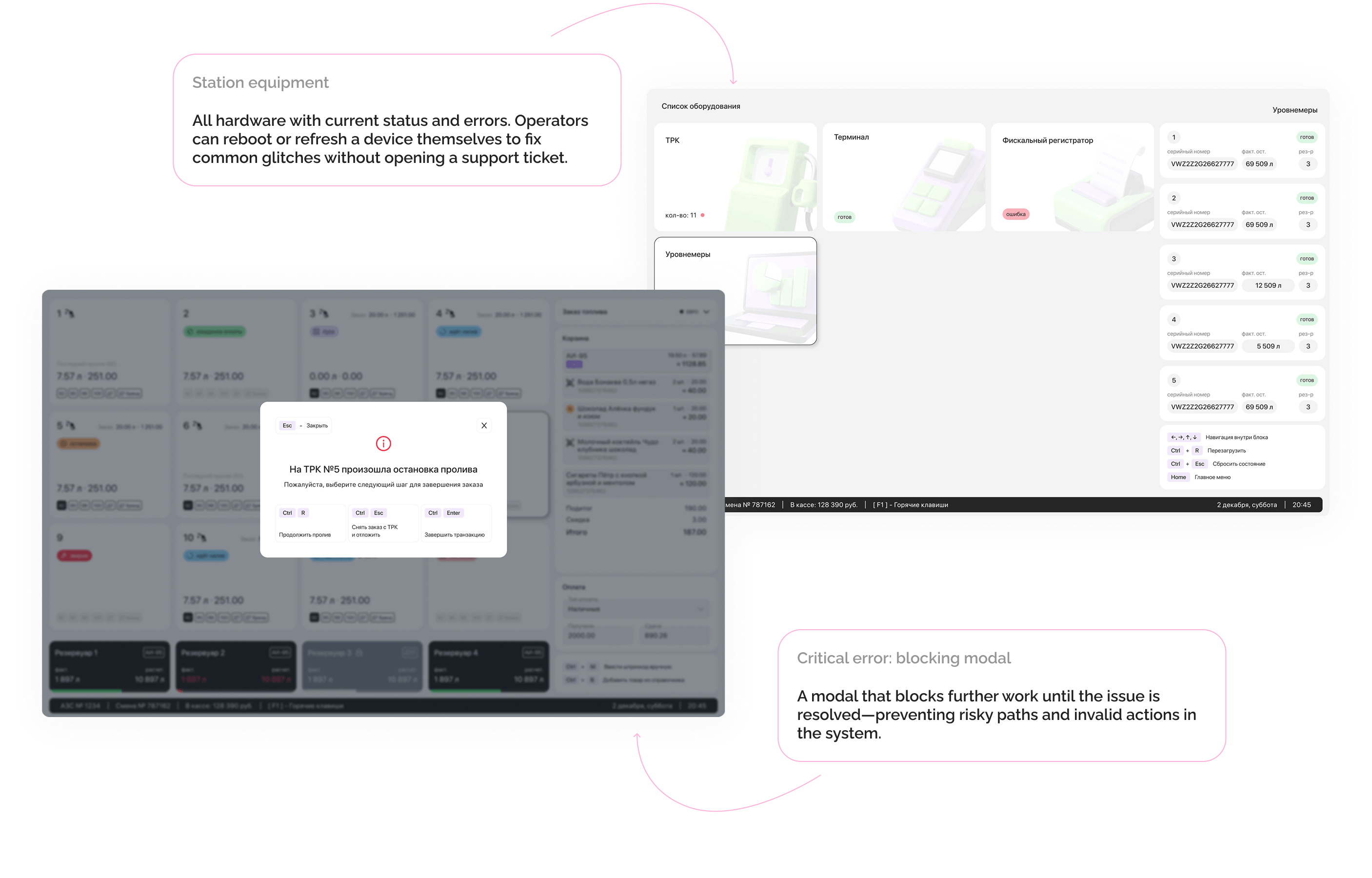
Worked through negative branches and error copy so it is clear what happened and what to do next

Stress-tested on low-end hardware and tuned contrast, size, and grid for real viewing distances

Outcome

Operators and owners reported the system is easier to use in real shifts than previous tools

Dense screens stayed dense but more readable—critical info gets lost less often in noise

Negative paths feel less like dead ends—there is usually a clear next step

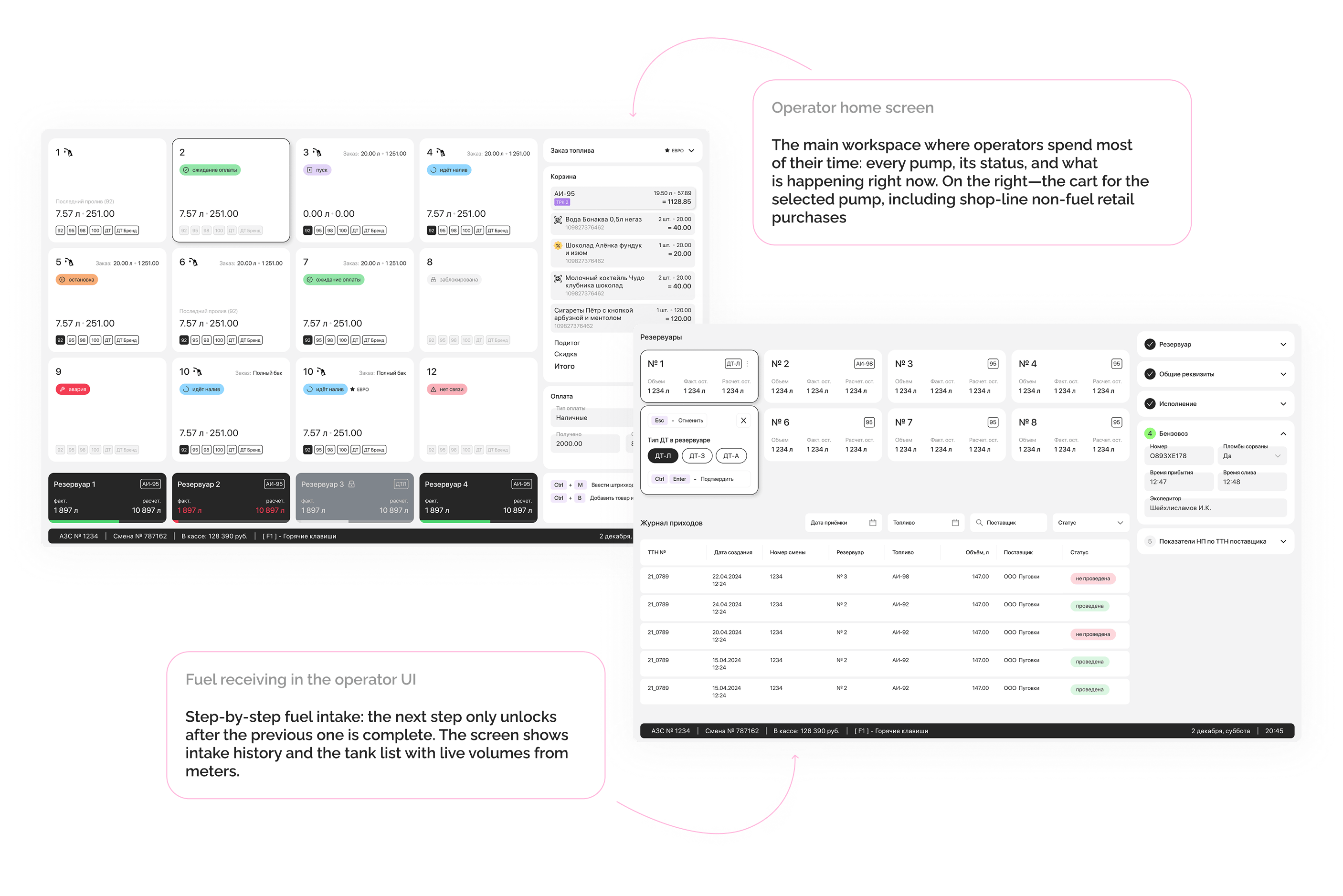
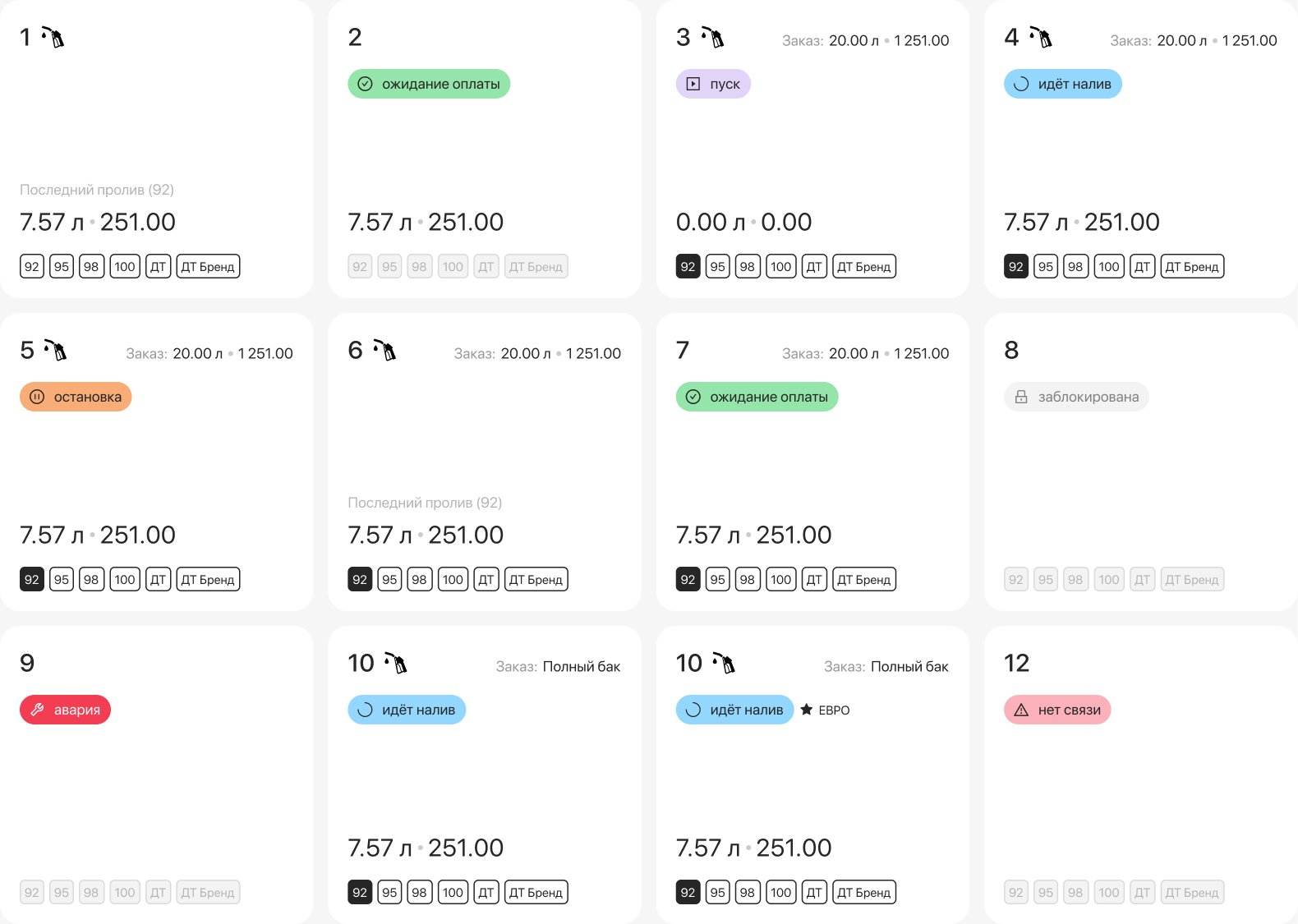
Home: pumps, statuses, and cart for the selected pump
Fuel receiving: step-by-step entry, intake list and tanks

02

Hotkeys: hypotheses, hints, and on-site observations

Task

Could not rely only on “power user” shortcuts—many operators are not that audience, yet speed on the line matters. Needed prototypes, on-screen hints for onboarding, a path to hide them for veterans, and iterations from feedback and observations at stations

What I did

Built prototypes, watched typing speed and common mistakes in internal runs and on site, and simplified combinations vs “standard” hotkeys

Added a toggle to hide hints plus quick help—support for beginners without constant noise for experts

Documented focus, hints, and states in the design system so new screens do not reinvent keyboard patterns

Outcome

Hotkeys became easier to explain and remember without long memorization drills

Hints are no longer “always on”—the UI adapts better to mixed skill levels without splitting the product

Keyboard patterns were reused across the team; support load dropped noticeably after stabilization (not tracked as a formal KPI)

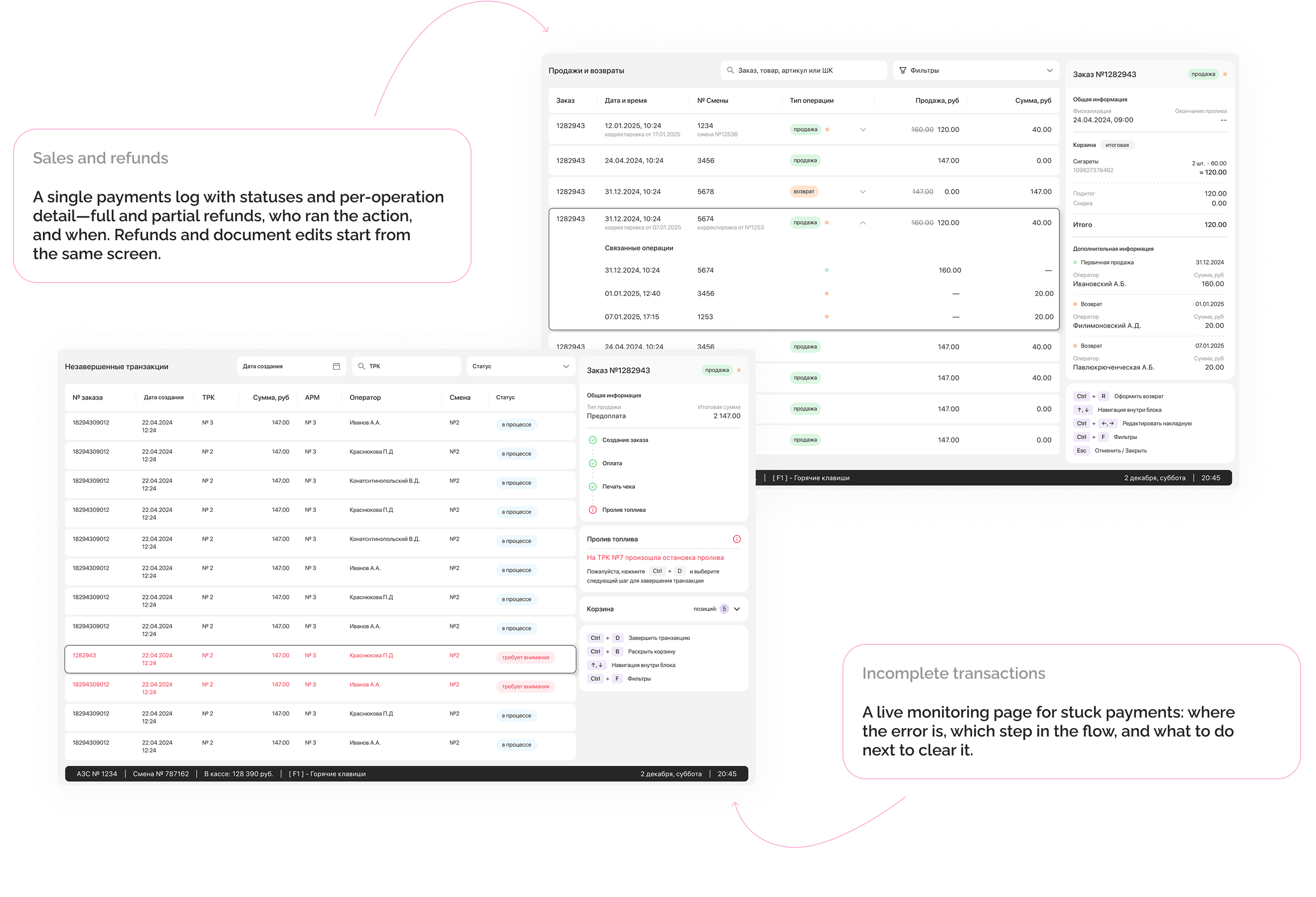
Sales and refunds: payment statuses and operation details